Skip to content
Chapter 2 / 9

Setting up your environment

Subscription, installation, folder organization on Mac, tools to have in place before you start.

Required prerequisites

A Claude Pro or Max subscription

Claude Code is not available on the free plan.

  • Pro, $20/month: enough to get started and covers most everyday use cases.
  • Max, $100/month: useful if you work intensively or if you regularly hit the quota limits of the Pro plan.

The quota is shared between Claude chat and Claude Code. Intensive coding sessions consume more than text conversations.

Tip: start with Pro. You'll quickly see whether the limits are a problem for your actual usage.

The Claude Desktop app

Download the app at claude.ai/download. Available on Mac and Windows. Sign in with the same account you use on claude.ai.

Prerequisites by path

ToolPath APath BPath C
Claude Pro/MaxYesYesYes
Claude Desktop appYesOptionalOptional
VSCodeOptionalYesYes
GitNoYesYes
GitHub accountNoYesYes
Lovable / Gemini accountNoNoDepends on the tool

If you're not sure which path you'll take, install everything. Setup takes less than an hour.

Organizing your folders on Mac

Claude Code works on real folders on your computer. Each project is a folder. Before creating the first one, take two minutes to set up a simple convention you won't have to revisit.

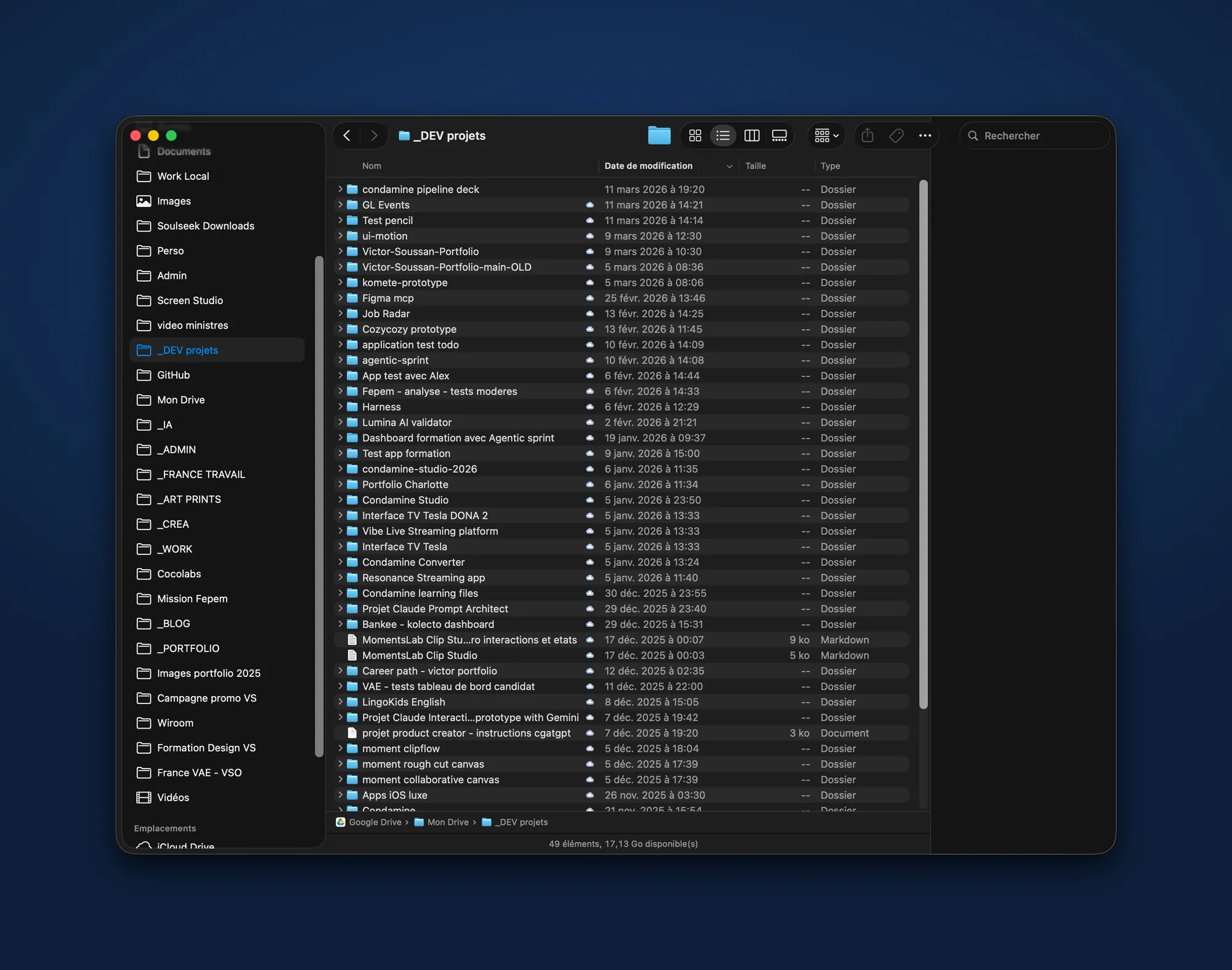
Create a dev_projects folder in your home directory:

/Users/your-name/
└── dev_projects/
    ├── portfolio-2026/
    ├── prototype-dashboard/
    ├── landing-client-x/
    └── design-system-doc/
dev_projects folder organization in the Finder

To create it:

  1. Open the Finder.
  2. Press Cmd + Shift + H to go to your home directory.
  3. Press Cmd + Shift + N to create a new folder.
  4. Name it dev_projects (no spaces, no capitals, no accents).
  5. Drag it to the left sidebar of the Finder for quick access.
Naming rule for subfolders: no spaces, no capitals, no accents. portfolio-v2 yes, Portfolio V2 no. Command-line tools handle spaces in file paths poorly.

Installing VSCode

Download VSCode and install it normally.

Once installed, two useful extensions to add:

Live Server: automatically reloads the browser every time an HTML or CSS file is modified. Essential for pure HTML projects.

GitLens: displays the Git history directly in the editor, on every line of code. Optional but useful for understanding what Claude changed in a file.

Installing Git

Git is the system that lets you version your project files and sync them with GitHub.

On Mac: Git is often already installed. To check, open the Terminal and type:

git --version

If a version number appears, you're good. Otherwise, install Homebrew then type brew install git.

Creating a GitHub account

GitHub is the service that hosts your versioned projects in the cloud. Think of it as a Google Drive for code: your files are saved there, every change is tracked, and you can share access with a developer.

Create a free account at github.com. The free plan is sufficient for everything described in this guide.

Installing Claude Code via the command line

If you want to use Claude Code from the VSCode terminal or directly from a terminal:

npm install -g @anthropic-ai/claude-code

This command requires Node.js to be installed. To check: node --version. If Node isn't installed, download it from nodejs.org (LTS version).

Once installed, launch Claude Code from any folder with:

claude
If you're using only the Desktop app: you don't need to install Claude Code via the command line. The Desktop app includes it natively.

Summary: checklist

Before moving on, make sure you have:

  • An active Claude Pro or Max subscription
  • The Claude Desktop app installed and signed in
  • The dev_projects folder created in your home directory
  • VSCode installed (if you're planning on paths B or C)
  • Git installed and working (git --version returns a version number)
  • A GitHub account created
  • Claude Code CLI installed (claude --version) if you're using the terminal

Victor Soussan

Lead Product Designer

I help design teams integrate Claude Code into their workflows: workshops, pair sessions, project setup.