Skip to content
Chapter 5 / 9

Iterating and refining visually

The Desktop app step by step, VSCode + companion window, the VSCode terminal workflow, and techniques for getting precise results.

The Desktop app step by step

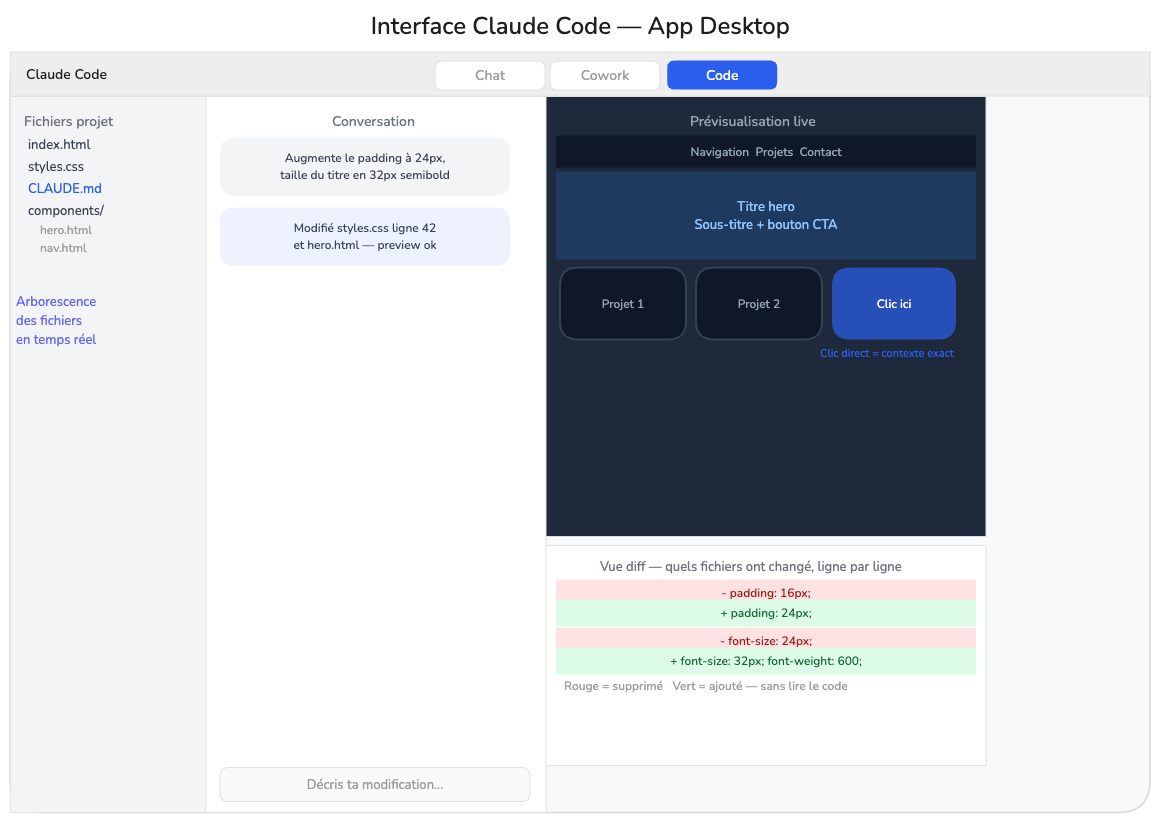
Step 1: Switch to Code mode

At the top of the Claude Desktop app, a toggle lets you switch from Chat to Code.

Step 2: Configure the environment

Environment: choose "Local" to work with files on your computer.

Project folder: select the folder inside dev_projects.

Model: Sonnet is fast and capable for most tasks. Opus is more powerful but uses more of your monthly quota.

Permissions mode: start with "Ask permissions" so Claude asks for confirmation before each modification.
Claude Code Desktop app configuration

Step 3: Give your first instructions

Create a portfolio page with three sections: a hero with my name
and title at 72px, a 6-project grid in 2 columns with
title and short description, a footer with LinkedIn and email links.
Background #F8F9FB, text #1E1E1E, accent #295FEC.
Use Tailwind CSS via CDN. Mobile-first responsive.

Step 4: Use the live preview

Click directly on elements: in the preview window, click on any element. Claude receives the exact context of the selected element.

The diff view: when Claude modifies a file, a diff is displayed: added lines in green, removed lines in red.
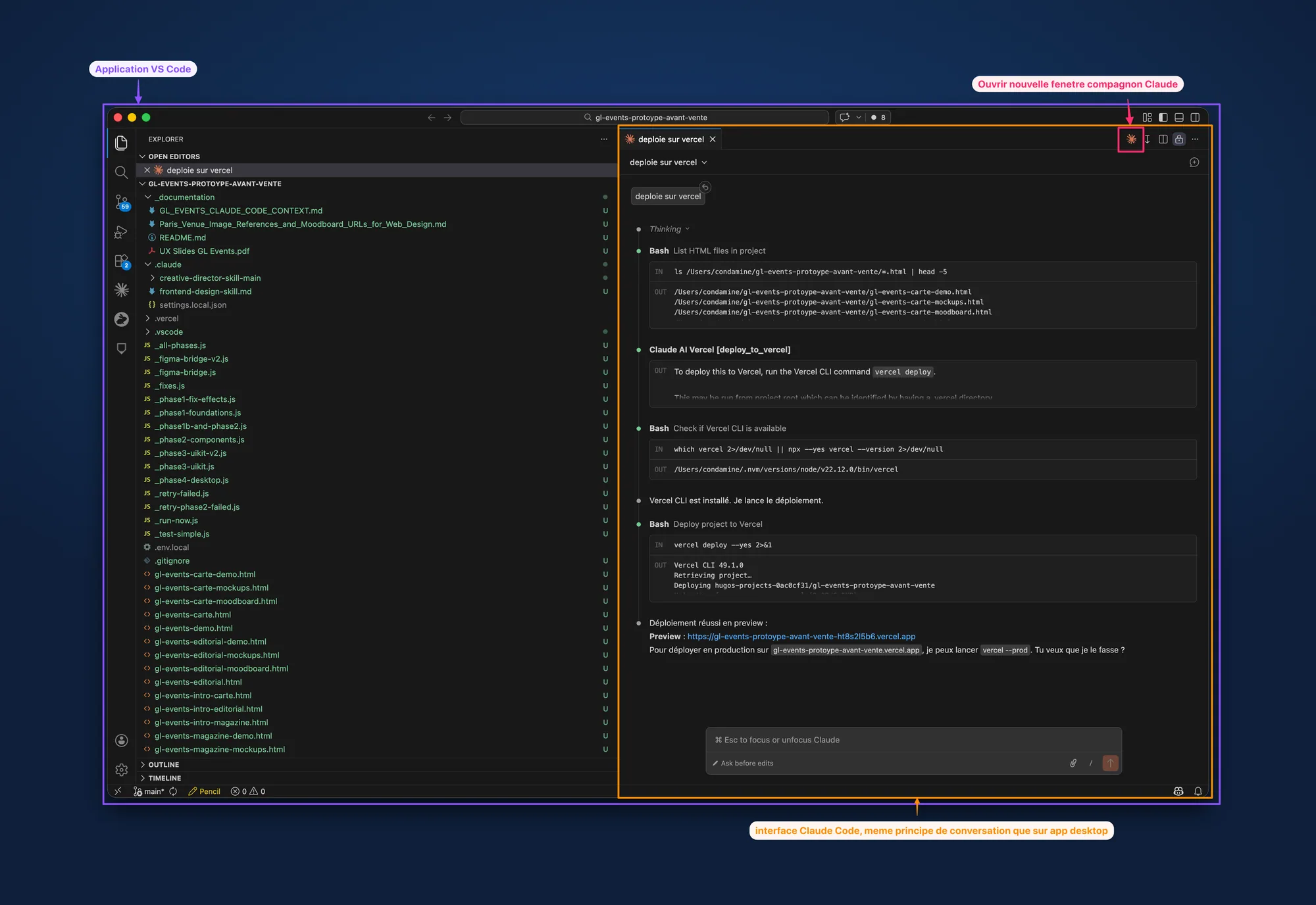
VSCode + Claude Code companion window

This is the setup I use most on a daily basis, and the one I recommend to designers who want to go beyond occasional exploration.

VSCode takes up the left half of the screen with the project files, and Claude Code runs in a separate conversation window on the right. Both point to the same folder.

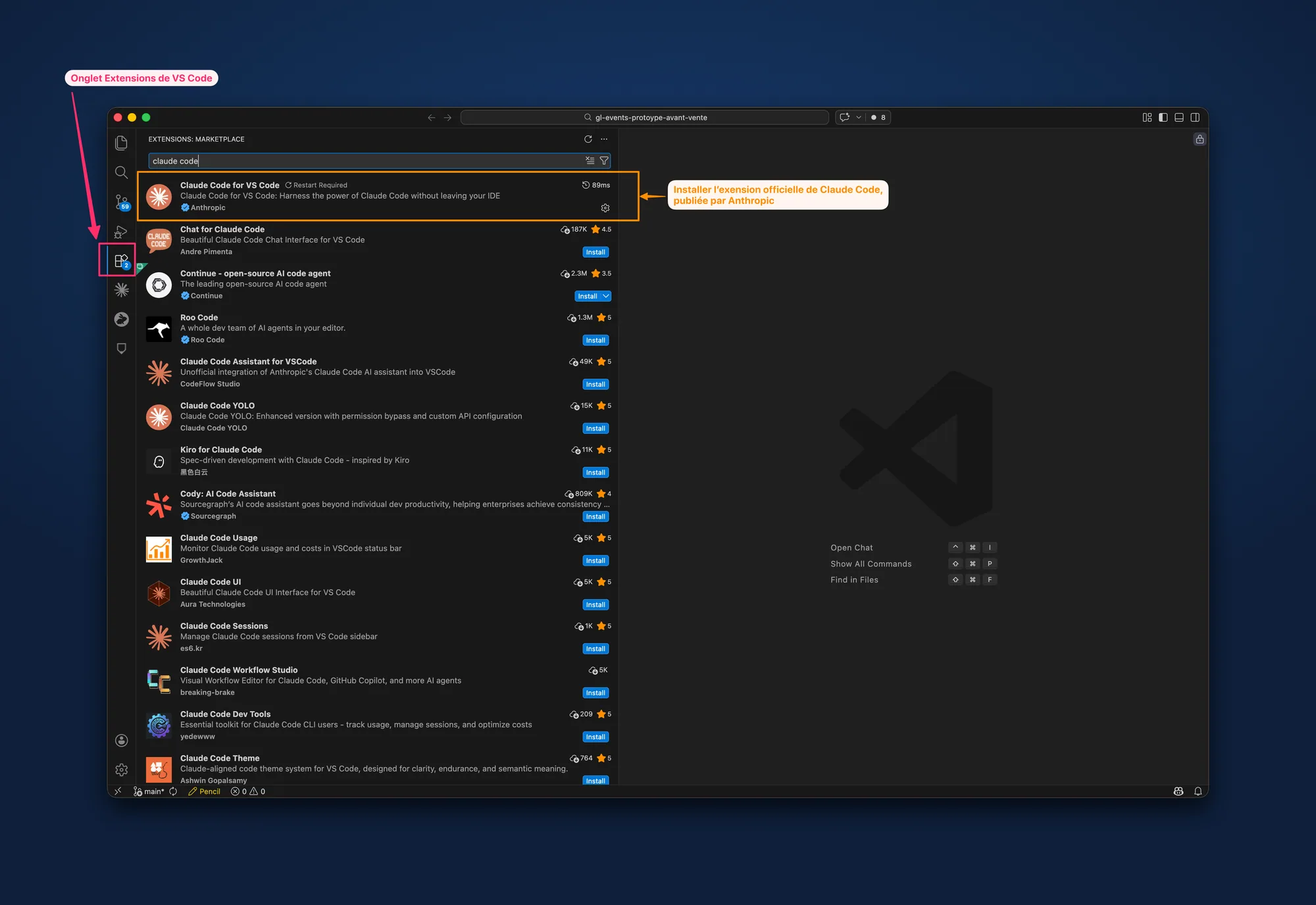
Prerequisite: install the Claude Code extension in VSCode

  1. In VSCode, open the Extensions panel: Cmd+Shift+X
  2. Search for Claude Code
  3. Select the extension published by Anthropic and click Install
Claude Code extension in the VSCode marketplace

Setup

  1. Open the project in VSCode: File > Open Folder
  2. Open the companion window: click the Claude icon in the sidebar
  3. Place the two windows side by side: 60% VSCode / 40% companion on a wide screen
  4. Verify Claude can see the files: "Read the project structure and summarize what it contains."
VSCode + Claude Code companion window

Working in this setup

Give precise instructions:

Update the HeroSection.jsx component:
- top and bottom padding to 80px
- title at 48px, weight 800, color #1E1E1E
- subtitle at 20px, color #6B7280
- space between title and subtitle: 16px

Copy-paste from the editor: select a passage in the editor and paste it into the chat along with your instruction.

Delegate Git: "Save the changes with the message 'hero: typography rework' and push to GitHub."

Organizing your screen space on Mac: three Mission Control spaces. Space 1: VSCode + companion. Space 2: browser with the preview. Space 3: Figma.

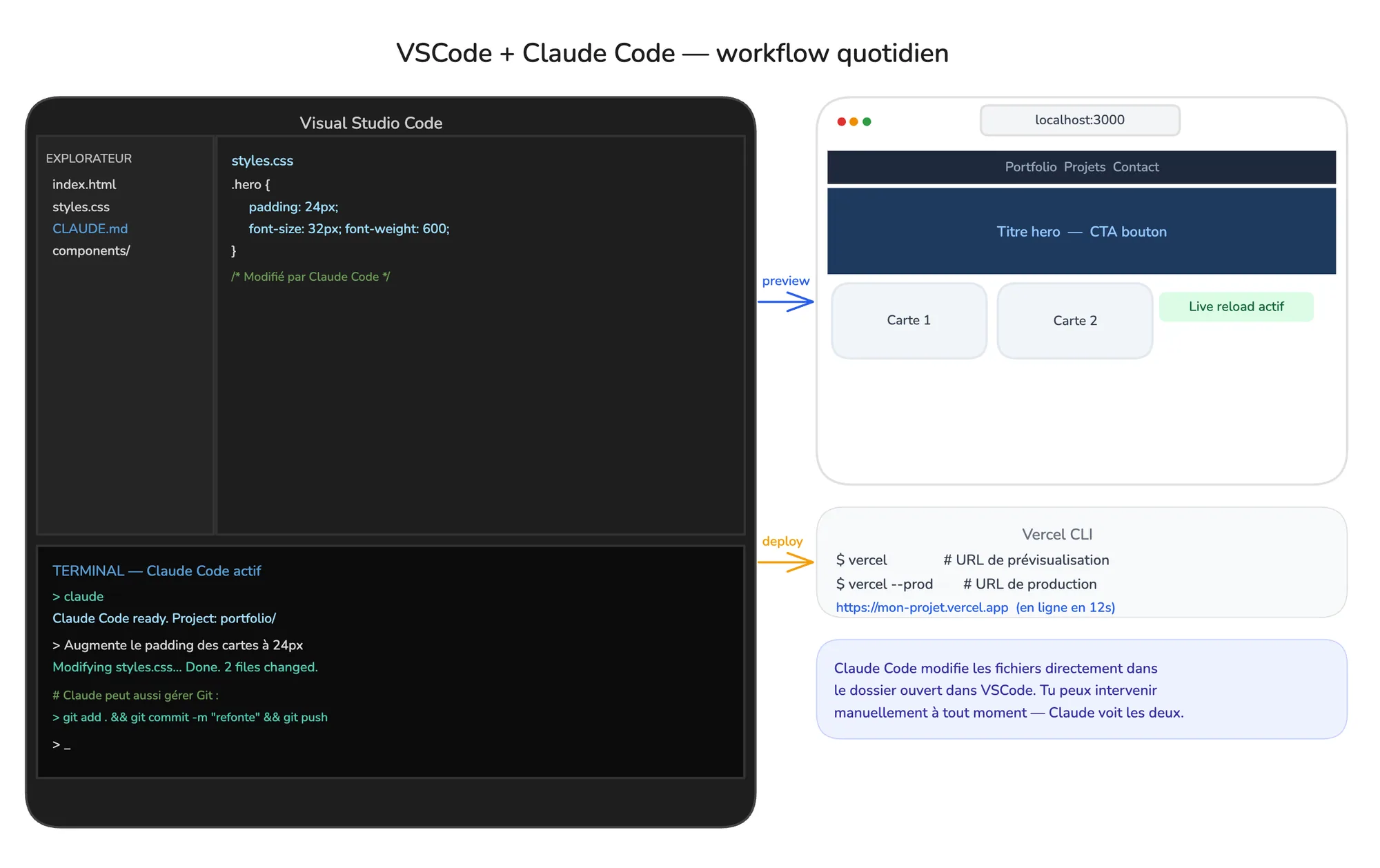
VSCode + integrated terminal

VSCode with Claude Code in the integrated terminal

Open the integrated terminal: Cmd+` (backtick)

Launch Claude Code: claude

Preview the result:

  • Static HTML: right-click on index.html > Open with Live Server
  • Next.js project: npm run dev in a second terminal, then open localhost:3000

Techniques for getting better results

Be as precise as a redline

Claude Code responds to precision. "Improve the look" gives nothing. "Increase the padding to 24px, set the title to 32px semibold, reduce the spacing between cards to 16px" gives Claude exactly what it needs.

Reference existing tokens

Use the CSS custom properties defined in styles/tokens.css.
Do not create new color or spacing values.

Show rather than describe

Drop a Figma mockup or a screenshot directly into the conversation. Claude sees images and uses them as visual context.

Build in layers

Step 1: Create the page structure with the header and footer.
Step 2: Add the hero section.
Step 3: Add the project grid.

Use Plan mode for complex tasks

Explain how you would structure this project before writing any code.
List the files you will create and the dependencies needed.

Roll back

If Claude makes a change you don't like, say "undo the last change" or "go back to the previous state".

Calibrating your expectations

Claude Code covers 60 to 80% of the way there. What remains is your responsibility.

The code will be functional but not always perfect. Spacing may be slightly off. Responsive behavior may need adjustments. That's normal.

The quality of your inputs determines the quality of the outputs. A clean mockup with clear token values produces much better results than a vague description.

You're learning a new workflow. The first session will be slower. By the third it will feel smooth. By the tenth, the rhythm will be second nature.

Victor Soussan

Lead Product Designer

I help design teams integrate Claude Code into their workflows: workshops, pair sessions, project setup.