Skip to content
Chapter 1 / 9

Understanding Claude Code

What it is, how it differs from other AI tools, and why it actually changes something for a designer.

What it is

Claude Code is a coding agent developed by Anthropic. In practice, it can read a project's files, write code, run commands, start a local server to preview an interface, and iterate on changes, all from a conversation.

You describe what you want to build. It writes the code, runs it, shows you the result. You tell it what's not working. It fixes it. The cycle looks a lot like what you do in Figma between two versions of a component, except the output is something that actually works in a browser.

How it differs from other tools

Several tools offer to "build apps with AI": Lovable, Bolt, v0, Framer AI. These are simplified interfaces built on top of AI models. They're fast to get started with and useful for initial exploration.

Claude Code works differently. It operates directly on your project's files, inside your working environment. It reads your folder structure, understands the conventions already in place, and can make precise edits to any file. It's not an app that generates code inside a black box: it's an agent working alongside you, on the same files.

This difference matters when you move from exploration to actual building: a project started in Claude Code is a standard project you can open in VSCode, version on GitHub, deploy on Vercel, and hand off to a developer without friction.

Lovable / Bolt / v0Claude Code
InterfaceDedicated web appTerminal, VSCode, or Claude Desktop app
File accessProprietary interfaceYour actual files, in your folder
Control over codeLimitedFull
ExportTo GitHub (depending on the tool)Already in your files
RequirementsNoneClaude Pro/Max

The three ways to use it

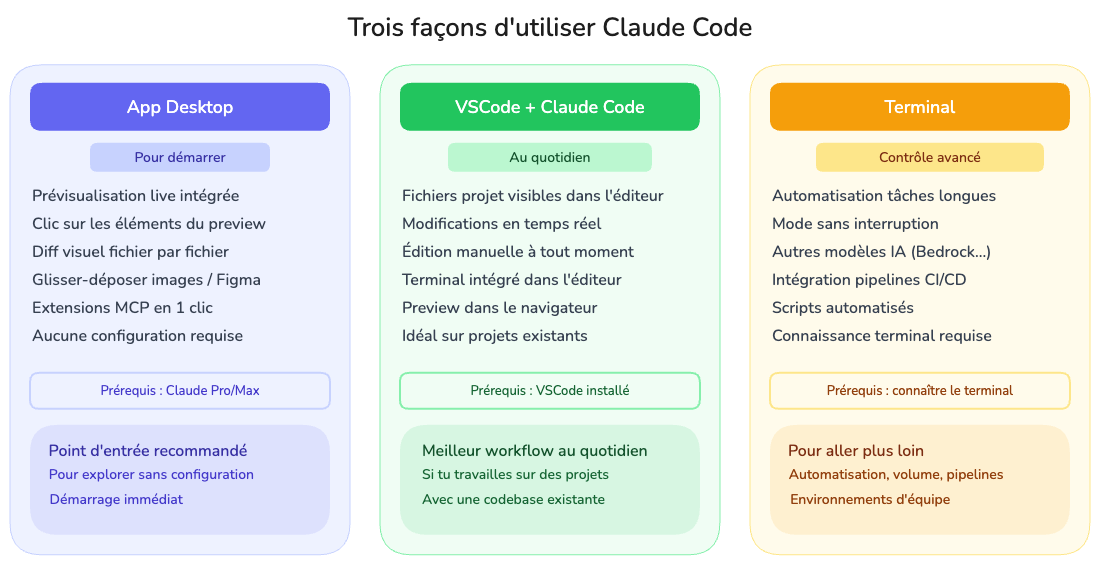
The three ways to use Claude Code

There's no single right way to use Claude Code. Depending on what you're trying to do and which tools you're already comfortable with, you'll pick a different mode.

The Desktop app is the fastest way to get started. Same interface as Claude chat, no configuration needed. You switch to Code mode, point it at a folder, and you're off. It includes a built-in live preview, a visual diff of changes, the ability to click directly on interface elements to give feedback, and drag-and-drop support for mockups and screenshots.

VSCode + companion window is the most efficient setup for daily use. VSCode takes up the left half of the screen with project files open in the editor, and Claude Code runs in a separate conversation window on the right. Both windows point to the same folder. You give instructions in the conversation, Claude edits the files, and you see the changes appear instantly in the VSCode editor without leaving the screen.

VSCode + integrated terminal is a variation where Claude Code runs directly in the terminal inside VSCode, without a separate window. Everything stays in one application. This is useful if you prefer working in a unified environment or if you're integrating Claude Code into a more technical workflow.

For most design projects, the Desktop app or VSCode covers everything you need. The terminal becomes relevant when the volume of work increases or when you're working in a team environment with specific technical conventions.
What it looks like in practice
VSCode open on the left with project files. The Claude Code companion window on the right in VSCode. You type: "update the hero component, padding to 24px, title at 32px weight 800". Claude edits the files. The diff appears in the editor, modified lines highlighted. You check on localhost:3000 in the browser. You ask Claude to push to GitHub. All without switching apps, without losing the thread of the conversation.

What you can actually build

The use cases with the most value for a designer:

Interactive prototypes with real data. Figma prototypes handle flows well, but not conditional logic, loading states, or real form behavior. Claude Code can build a version that responds to real interactions. The difference is noticeable in a client presentation.

User testing prototypes. A prototype that tracks clicks, measures time spent on a task, or changes content based on user actions. Figma can't do that. Claude Code can build it in a single conversation.

Design system documentation. A page where each component renders with its actual code, variants are interactive, and everything uses your real tokens. Much more useful than a static Figma page.

Direct UI fixes. Incorrect spacing, a button color that needs changing. You open the project in Claude Code, click the element, describe the change. Claude generates a clean pull request that developers can review directly.

Sites and landing pages. A portfolio page from your Figma designs, a client landing page deployed to production, a presentation page for a side project.

What it doesn't do for you

Claude Code covers 60 to 80 percent of the way there. The rest stays your responsibility.

It generates code that works, but it won't always be structured exactly the way a senior developer would have done it. Responsive behavior may need adjusting. Fine-grained animations require iteration. And design decisions, telling it what looks right visually and what doesn't, remain yours.

The tool amplifies what you already know how to do. The more precise you are in your descriptions and feedback, the better the result.

Victor Soussan

Lead Product Designer

I help design teams integrate Claude Code into their workflows: workshops, pair sessions, project setup.