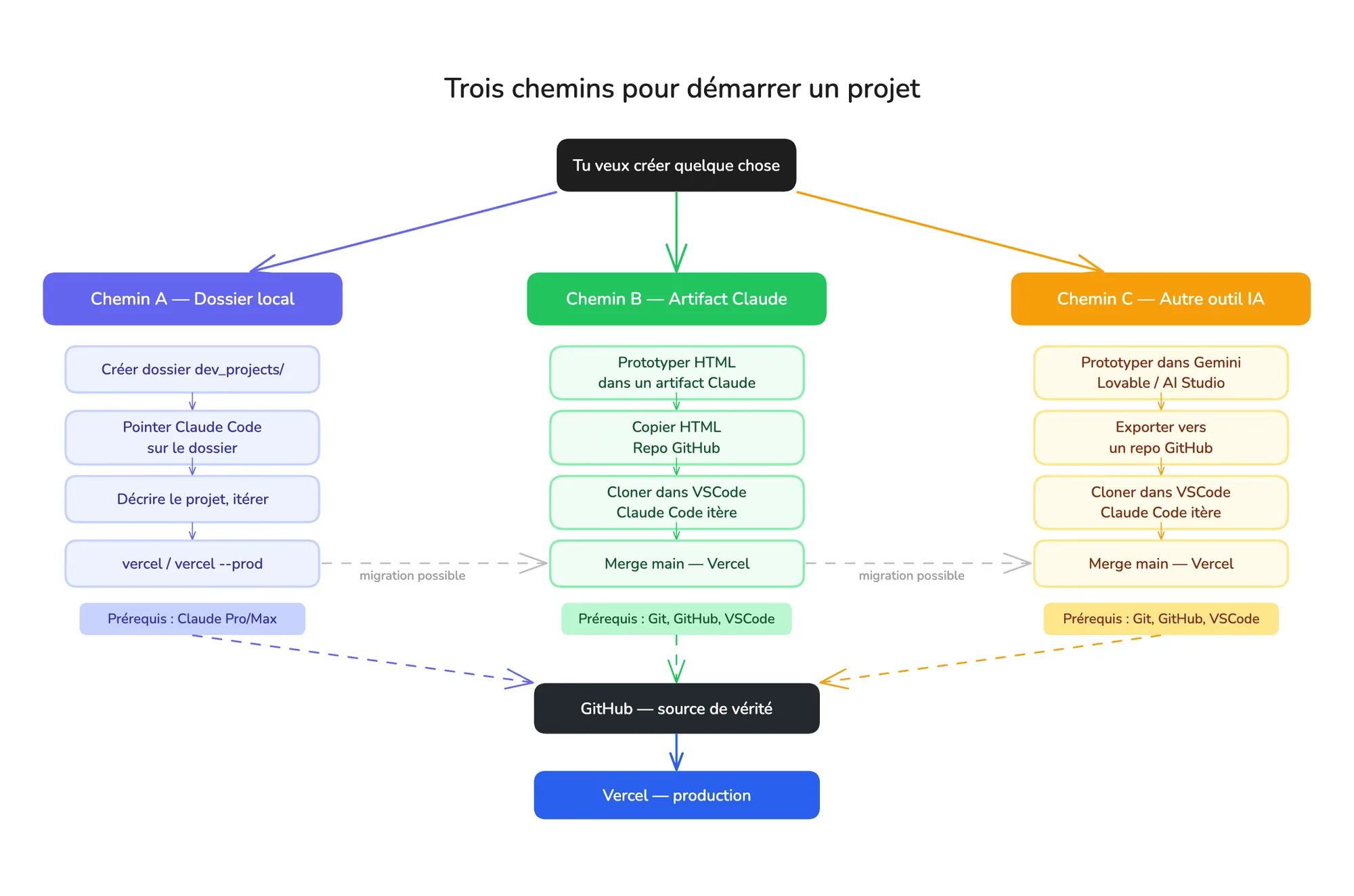
There's no single way to start a project with Claude Code. Depending on how developed your idea is, the tools you're comfortable with, and the time available for setup, you have three paths to choose from.
Local folder, Claude artifact, or another AI tool as a starting point. How to choose and how to migrate from one path to another.
There's no single way to start a project with Claude Code. Depending on how developed your idea is, the tools you're comfortable with, and the time available for setup, you have three paths to choose from.
When to use it: you have a clear idea, you want to build something from scratch without going through GitHub, and you want to move fast.
Requirements: a Claude Pro or Max account. Nothing more.
Claude Code points to a folder on your computer and creates files inside it. It's like having someone working directly in your Finder, in real time.
Inside dev_projects, create a new folder with a clear name: portfolio-2026, prototype-login, landing-client. No spaces, no capitals, no accents.
In the Desktop app: switch to Code mode, click "Choose folder" and select your folder.
In VSCode: open VSCode, then File > Open Folder, select your folder. Open the integrated terminal (Cmd+`) and run claude.
Create an index.html file with a minimal portfolio page.
White background, dark typography, a hero section with my name
and title, a grid of 6 projects with title and description,
a footer with my links. Use Tailwind CSS via CDN.vercel # Preview URL
vercel --prod # Final public URLPath A doesn't go through GitHub. Your files exist only on your computer (and on Vercel if you deploy). That's enough for most prototypes and solo projects.
When to use it: you want to quickly explore several visual directions before committing to a file structure.
Requirements: a Claude account (even a free one for initial prototyping), Git, a GitHub account, VSCode.
Claude chat can generate HTML directly in an artifact: a preview window that opens inside the conversation. You see the result in real time, you can ask for changes, and when the interface looks right, you grab the source code.
HTML artifacts are particularly useful for exploring layouts, testing color palettes, or showing a direction to a client in a matter of minutes.
Cmd+Shift+P > Git: Clone)claude in the integrated terminal and keep iteratinggit add .
git commit -m "Add hero section and navigation"
git push origin main
vercel --prodTime saver: Claude Code can handle the entire Git process for you. Just tell it: "save the changes with the message 'navigation redesign' and push to GitHub".
When to use it: you want a visually polished interface very quickly, or you want to leverage the specific strengths of another tool for the exploratory phase.
Lovable generates complete React applications. It exports natively to GitHub in one click, making it the simplest to connect to Claude Code.
Google AI Studio with Gemini is particularly strong for data-heavy interfaces, dashboards, and components with business logic.
Bolt and v0 (Vercel) also export to GitHub and generate React interfaces with Shadcn components.
claude in the integrated terminal.Before changing anything, give Claude Code this instruction first: "Read the project structure, identify the stack and existing conventions. Summarize them before doing anything."
If you've never used Git, here are the four things you need to understand. Nothing more.
Repository: a project folder hosted on GitHub, with the complete history of all its changes.
Clone: downloading a copy of a repo to your computer, with the connection to GitHub maintained.
Commit: a named save. git commit -m "Navigation redesign" creates a snapshot of the project at that point. The equivalent of duplicating a Figma file before a major change.
Push: sending your local commits to GitHub. Without git push, your saves exist only on your computer.
You don't need to understand branches, pull requests, or merge conflicts to get started.
| Path A | Path B | Path C | |
|---|---|---|---|
| Starting point | Empty folder | Claude artifact | Lovable / Gemini / Bolt |
| Setup | Minimal | Moderate | Moderate |
| Speed to start | Fast | Very fast | Fastest |
| Control over structure | Full from the start | Full after migration | To reclaim after migration |
| Best for | Clear specs | Visual exploration | Complex UI from the start |
| Requirements | Claude Pro/Max | Git + GitHub + VSCode | Git + GitHub + VSCode + tool account |